On-site transcription and translation in an enterprise account
This section is part of the AI Live Streaming Manual, for accounts that use both our online player (for live streaming) and our on-site app (for event participants). Note: if you are only using our 'On-Site plan' (= without live streaming), please consult our On-Site AI Platform manual.
This guide explains how event organizers can make the AI text transcriptions and speech translations available to on-site event attendees in real-time. This way, people can read the speech-to-text conversion and text translations, for example on a big screen or on their smartphone. Or they can listen at a conference to translations in real-time, using their smartphone and headphones.
Note: Online participants, for example remote speakers, can also use this functionality. However, since it is primarily used by on-site event participants, it will henceforth be referred to as "on-site transcription and translation".
Introduction
Live streaming events, watched online in our video player, also allow for real-time transmission of text transcriptions and audio translations. In this context, there is a clear distinction between the live video stream, which is transmitted with a certain delay, and the transcriptions and audio translations, which are transmitted in real time.
This guide explains how to create events with on-site transmissions within an enterprise account, and how to use them to deliver transcriptions and audio translations to users on-site.
Note: if you only need our 'On-Site plan' (= no live video streaming), don't read this guide. Consult our On-Site AI Platform manual instead.
Event Configuration
Follow the normal workflow to create an event with AI closed captions and/or speech translations. In the AI wizard, make sure to choose 'SRT' as broadcast protocol instead of RTMP, which allows you to broadcast with a lower latency. In step 2 of the wizard, check 'Provide on-site transcription for event attendees' and/or 'Provide on-site audio translations for event attendees'.
We recommend creating an AI vocabulary, as this will (also) improve the quality of the transcription and translation.
The further configuration of your event depends on whether it is only used for on-site purposes, or also for online video streaming.
Note: since the transcribed text needs to be delivered without delay, adjustments by human correctors (if any) will not affect the transcript. However, automatic adjustments — resulting from terms being part of the vocabulary — are also carried through in the transcript.
1. On-site only event
If the sole purpose of the event is to provide on-site transcription and/or translation, the video stream plays no part. You will want to minimise the delay of the transcription and translation as much as possible.
Management
After the AI wizard finishes, you are directed to the 'Management' tab of the event. On this tab, scroll down and adjust following settings:
- Resolutions: remove all resolutions except for 240p. Since you are not streaming video, transcoding to multiple video resolutions is pointless.
- Latency: if you only need transcriptions, select 'Low Latency' to avoid additional delay when generating the transcript text(s). If you also need AI translations, 'Default Latency' is required.
Broadcast
Currently, Clevercast still expects an incoming video and audio stream. But since the video isn't watched by anyone, you can simply broadcast a black screen.
Go to the 'Broadcast' tab of the event to configure your encoder. The SRT protocol should be selected (after you chose it in the AI wizard). Please note that using RTMP will introduce extra second(s) of delay.
To minimise delay, set your encoder to the minimum latency of 200 milliseconds for a broadcast from Europe. If you use OBS, you can copy the SRT caller URL on the 'Broadcast' tab of the event page.
Note: we hope to add support for sending audio-only through the browser soon (via WebRTC), eliminating the need for an encoder if you only need our on-site app. This is already possible in our OnSite AI Platform.
2. Combination with live streaming
Management
On the 'Management' tab of the event, you can choose between 'Default Latency' and 'Low Latency'. If you are also live streaming, we recommend selecting Default Latency, as this will improve the quality of the closed captions.
Notes:
- Since the transcriptions are generated in real-time, the accuracy of translated transcrips will be lower than the accuracy of translated closed captions in the live stream, as the latter's delay allows more context to be provided to the AI models.
- On-site transcriptions are also supported for events with human correctors. However, corrections only apply to the closed captions and speech translations in the live stream, not to the on-site transcription and translation.
Broadcast
If you combine on-site delivery with live streaming, the same broadcast settings will apply to both. We recommend testing beforehand to determine what SRT latency to set on your encoder (as low as possible for the transcript, but sufficiently high to guarantee a stable live stream). For a broadcast from Europe, this will probably be between 400 and 800 milliseconds. For a broadcast from the US, 1 second is more appropriate.
On-site configuration and links
Before the event starts, the event manager needs to distribute the on-site transcription and/or translation links to your on-site production team and/or event participants. These links can be found on the 'On-Site' tab of the event, together with the settings that determine the behaviour of the on-site app.
On-site settings
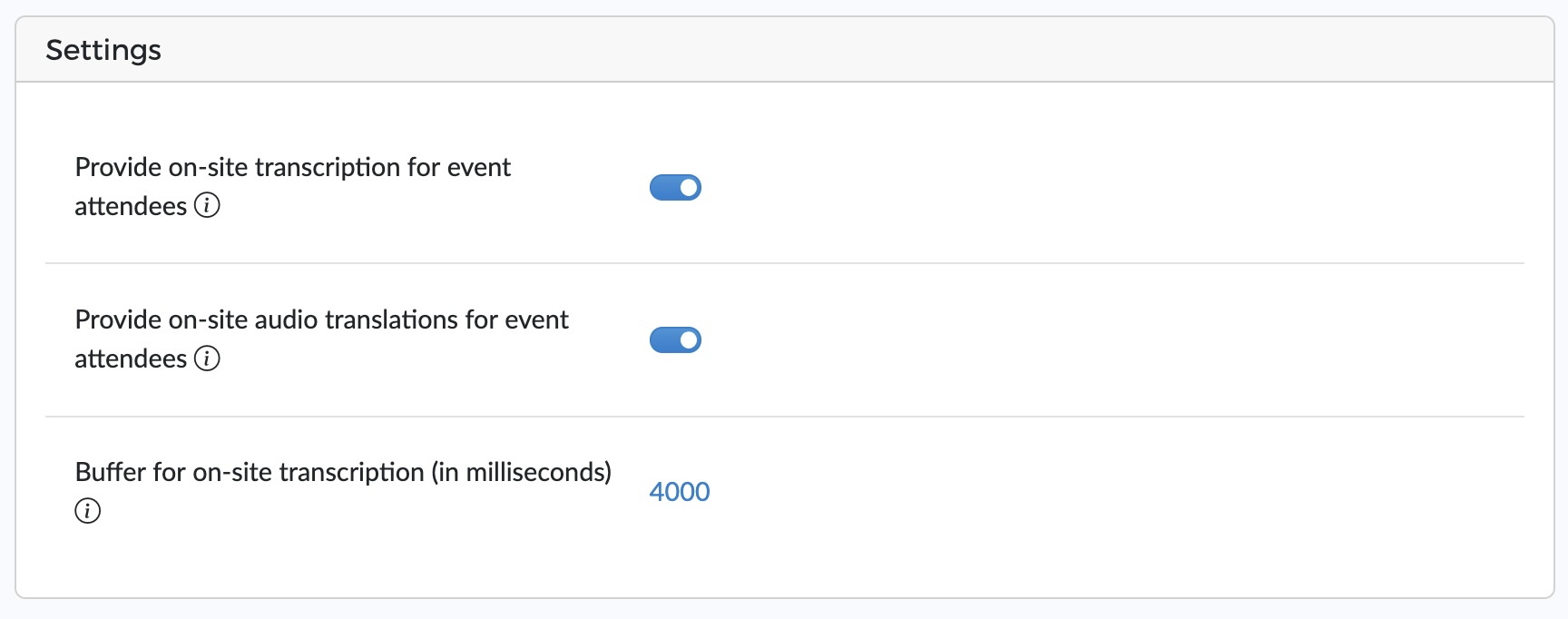
The first two settings determine if on-site transcription and audio translations are turned on/off for the event. They must be set before the event status is set to PREVIEW.
Buffer for on-site transcription (in milliseconds) is an advanced setting. To ensure accuracy, a small buffer is used during the conversion of speech to text. A smaller buffer results in on-site transcription being delivered faster but lower accuracy. A bigger buffer results in higher accuracy but on-site transcription being delivered slower. If you're not sure, use the default setting.
On-Site Landing Page
The 'Open On-Site Landing Page' links to the start screen of the on-site app. You can copy the QR code or link to the app and send it to on-site participants, allowing them to select the transcription and/or audio language themselves in the app.
On-Site Transcription and Audio Translations
Here you can copy the links that allow end users to open the on-site experience for a specific audio and/or caption language that you have configured. You can copy both the URL and the QR code.
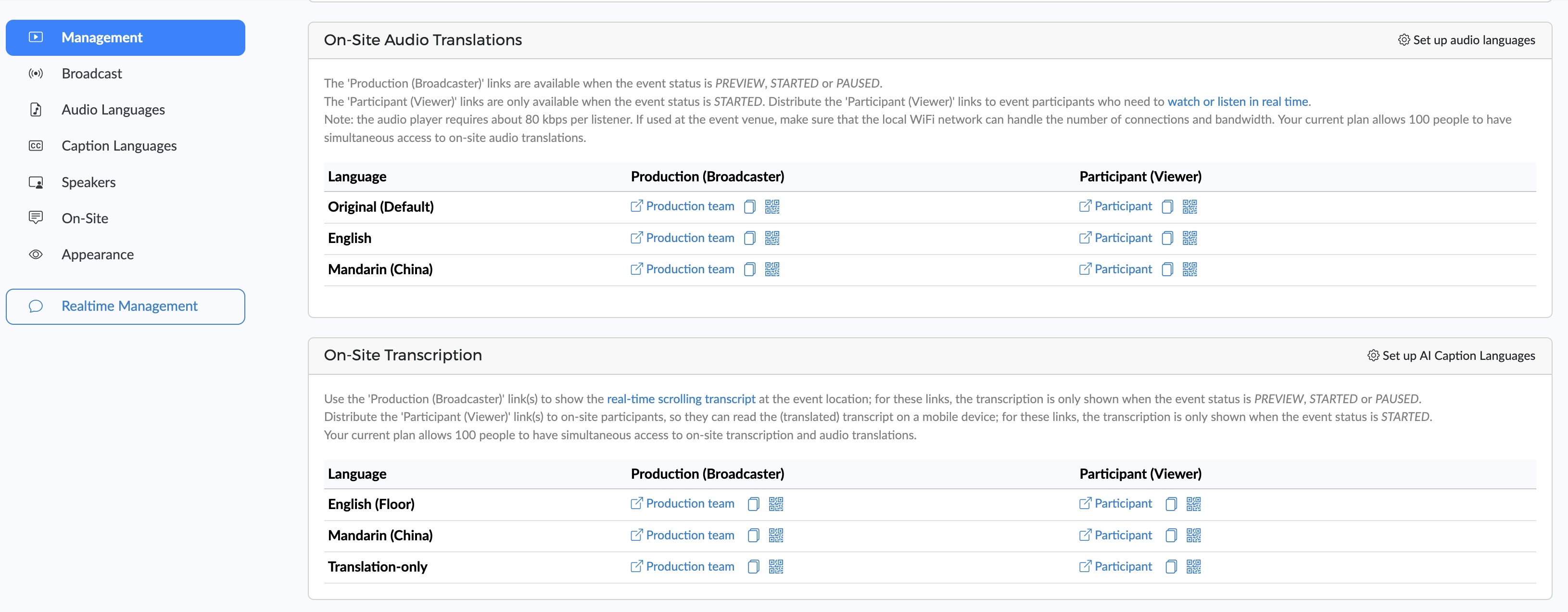
For each audio and caption language you have added, two links are available.
- Production (Broadcaster) links: these are intended for the event organizers, mainly for displaying the real-time scrolling transcript on screen(s) at the event venue. These links also show the scrolling transcript when the event is set to Preview or Paused. This way, on organizer can easily test in advance.
- Participant (Viewer) links: these are intended for end users, so they can read the transcription(s) and/or listen to the translation(s) on their mobile device in real-time. These links require the event to be Started before the transcript or audio becomes available.
Event management
Follow the normal workflow to test, start and stop your live stream, including the on-site transcription and translation.
On-Site Application
See the On-Site Application of the on-site (only) platform manual. The application behaves the same way, regardless of whether you have an enterprise plan or an on-site plan.

Note: when using the enterprise plan, the on-site app can be extended with a video player for virtual event participants (upon request). Given the extra bandwidth that video requires, you shouldn't provide the link to the video player to on-site attendees.